THE STICKERROAR GUIDE
PNG Transparency Checker: Test Your Background
Check a PNG for transparent pixels in your browser, then switch between white, dark and checkerboard previews to inspect its background. No image upload or signup required.
Updated
FREE ARTWORK CHECK
Check your PNG here
See whether your file contains transparent pixels, then inspect its edges on light and dark backgrounds. Your image stays in your browser.
PNG only · up to 12 MB and 16 million pixels. Static images only.
Choose a file to begin.
Transparency does not confirm a clean cutout or print quality. Inspect the outer background, white details and small gaps. This checker does not remove backgrounds.
Preview as a sticker →The editor is a separate upload step. Nothing is sent there automatically.
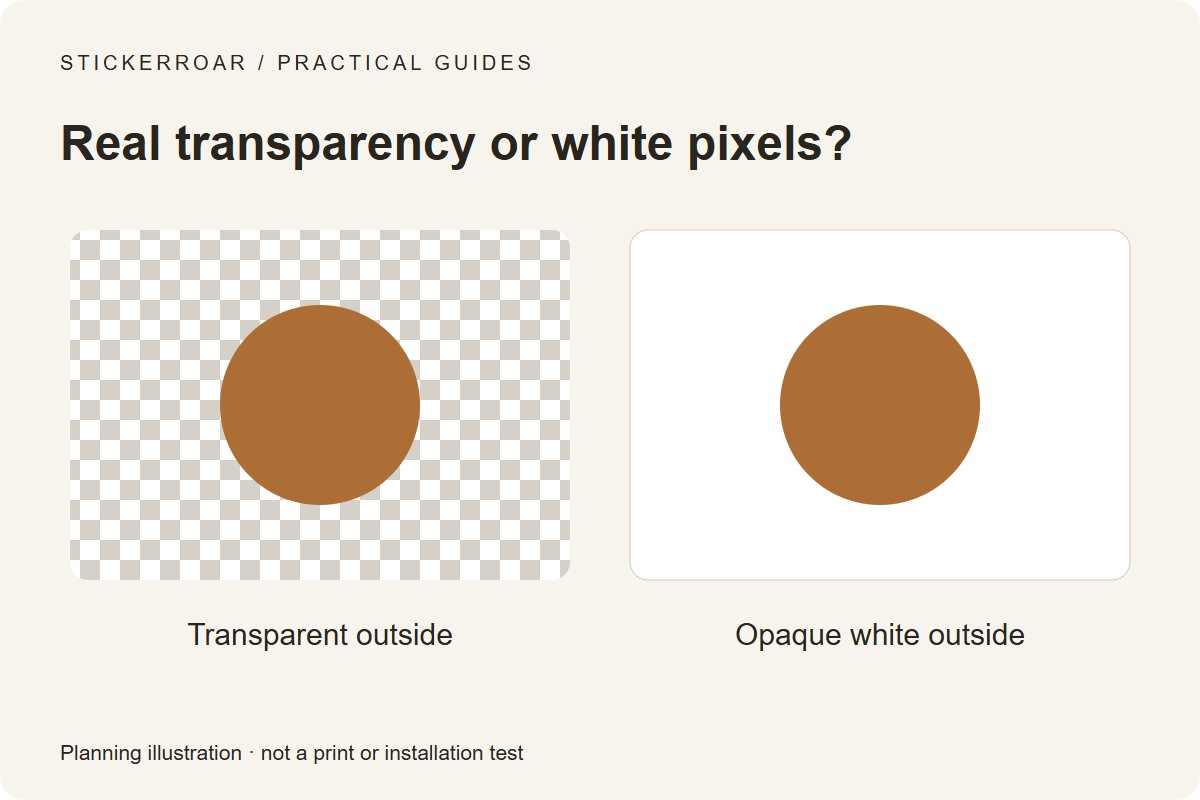
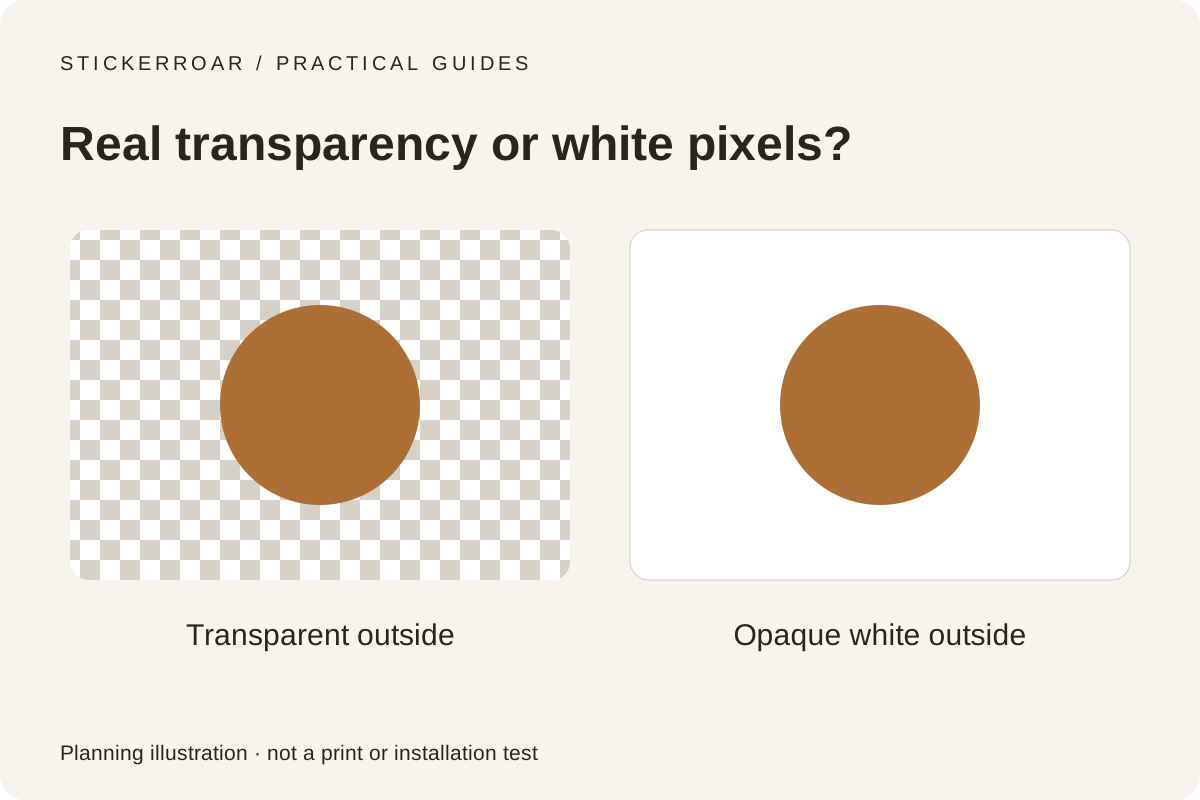
Planning diagram. View the full-size guide.
Check the actual pixels, not just the filename
Choose a static PNG in the checker above. It counts fully transparent, partly transparent and opaque pixels at the original image resolution. Use the White and Dark buttons to inspect the same file on different backgrounds. The file stays in your browser; checking does not upload or modify it.
A PNG can contain a completely opaque white rectangle. A checkerboard can also be painted into the image. The extension alone does not prove that a background is transparent.
What the result means
- No transparent pixels: every pixel is opaque. A white rectangle or checkerboard in this file is image content, not an empty background.
- Transparency found: at least one pixel is partly or fully transparent. That might be a tiny hole or soft edge, so inspect the surrounding area rather than assuming the whole background is clear.
- Fully transparent: there is no visible artwork. Check the exported layer selection before ordering.
- Transparent outer-edge pixels: transparency reaches at least one boundary pixel. This does not prove all background areas have been removed.
If the area outside your design changes with the selected background, that area is transparent. If a white box or checkerboard stays in place, it is part of the image. White lettering, eyes and highlights may be intentional; do not erase every white pixel to remove an unwanted rectangle.
Check small gaps and soft edges
View your file on both dark and white backgrounds. Look around pale lettering, narrow openings and detached dots. A partly transparent edge may be intentional anti-aliasing or a shadow; the pixel count cannot decide whether it belongs in your design.
This checker does not remove backgrounds, assess copyright, verify print resolution or approve a cut line. Files over 12 MB, over 16 million pixels, with a side over 16,384 pixels, or animated PNG files need a smaller static export for this check. Reducing a file for checking does not improve its print quality.
No JavaScript? Use a background layer
Open the PNG in an image editor and put a solid dark layer underneath it, then a white one. Check whether the outer area follows those layers. Export the artwork alone, without the test background layer, and reopen the saved file to confirm the result. A screenshot of an editor's checkerboard is not a transparent original.
Turn the checked artwork into a sticker
Open the sticker editor and upload your original PNG separately. Compare Auto contour and Original background when those options are available. Inspect the outline, small details and intended size; return to the original if automatic processing removes something you need. The checker does not transfer your file to the editor.
A transparent file and transparent material are different choices. White PVC is an opaque base; Clear needs its own review of white ink, background and visible details. See White PVC versus Clear and white versus clear borders.
For your own design, custom car stickers explains the order-request process. No online payment is collected; final artwork and production details require confirmation.