THE STICKERROAR GUIDE
RGB or CMYK for Custom Stickers? Files, Color and Approval
Prepare a sticker upload and a clear brand-color brief. Understand RGB, CMYK, material choices and which production details need confirmation before printing.
Updated
For the screen-preview step in StickerRoar's editor, an RGB PNG or JPEG copy is a practical starting point. Keep your editable master and any existing production files separately. This is a preview-file recommendation, not a specification for the final printing process. Do not choose a random CMYK profile just because the artwork will eventually be printed. If an exact brand color matters, confirm the production color requirements before changing the master.
The immediate task is to supply a usable image and a clear color brief. An accepted upload or an attractive preview does not establish how closely the physical sticker will match a brand reference.
What RGB and CMYK describe
RGB represents color through red, green and blue components and is used for screen images. CMYK represents cyan, magenta, yellow and black process-ink components. The available colors depend on the particular color space and output conditions. Some colors displayed in RGB cannot be reproduced by a given CMYK process, so conversion can change their appearance. Adobe's color-mode reference explains these distinctions.
There is also a difference between a file format and a color specification. A .jpg extension alone does not describe the intended printing conditions. Keep track of the original document's color mode and profile alongside the artwork, and ask which export is appropriate when the existing master was prepared for another supplier.
Separate the upload from the production decision
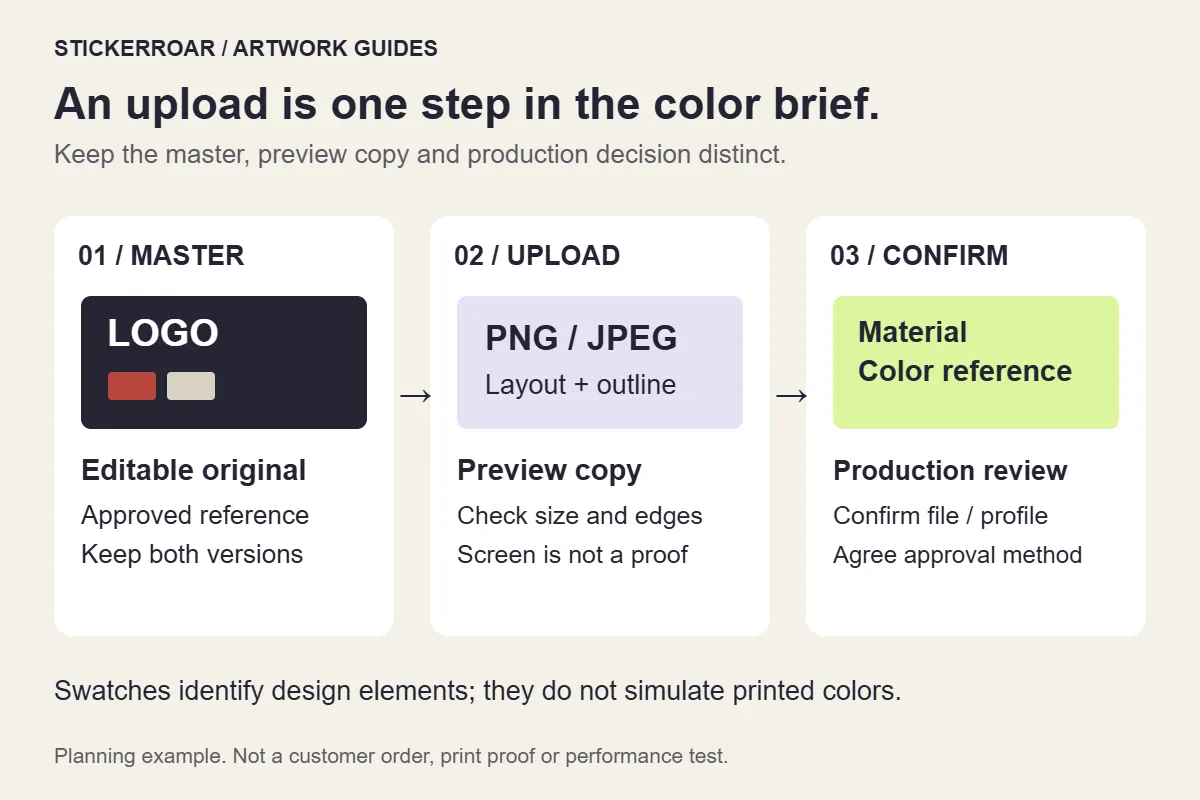
The workflow diagram distinguishes the master file, the upload copy and the production discussion. View the full-size diagram. It shows a handoff process, not measured colors or a printed proof.
Keep an unchanged copy of the master before making exports. Prepare the PNG or JPEG used to inspect the layout in the editor, and retain the production file separately if you already have one. Do not rename a PDF or vector file to .png; export a supported image from the application that can open it.
Open the export and check that the logo, text, transparent areas and outer edges survived. Then inspect the editor's size and resolution warning. These checks answer whether the uploaded composition is usable; they do not confirm an exact color match. The file-format guide covers the current upload choices.
Write a brief that identifies the critical color
Imagine a company whose logo contains an approved red, dark lettering and a decorative gradient. The company name and colors in this example are hypothetical; no customer result is implied.
A useful request might say:
The solid logo red is the priority. Please use the attached approved reference when reviewing the print specification. The gradient is secondary. We intend to use White PVC, and we need to confirm how the red will be approved before production.
Add the reference you actually have: an approved brand document, an identified color value with its color space, or a physical reference available for discussion. A screenshot from an unknown display is useful for explaining the design but is not a controlled print standard. If several references disagree, identify which one should take priority instead of asking the printer to infer your preference.
Record the filename and version. If a colleague changes the logo while another person reviews the color, an approval can otherwise end up attached to the wrong artwork.
Keep the material choice in the same conversation
White PVC has an opaque white base. Clear has a transparent base, so areas without printing can show the mounting surface. A transparent gap between letters is different from lettering that must print white. Those choices belong in the color brief alongside the logo reference.
For example, a white detail in a logo needs an explicit white-ink discussion on Clear. State which areas should remain white and which should reveal the surface. The White PVC and Clear guide explains this visual decision. Digital material effects help communicate the intention; they do not prove the final ink coverage or opacity.
What to ask before approving production
- Which file and color profile are required for this artwork and selected material?
- Which reference will be used to judge the critical brand color?
- How will white areas be handled, especially on Clear?
- Is an appropriate physical sample or proof available, and what would it cover?
- What needs fresh approval if the artwork, material or finish changes?
Do not treat a request for a sample as confirmation that one has been included. Confirm the available review process and any associated arrangements before proceeding. StickerRoar does not publish an exact brand-color matching tolerance in the current product information.
When the file and brief are ready, start a custom car sticker request. The current workflow takes no online payment; final artwork and production details require confirmation. Keep the approved version, its color references and the agreed material together so a later reorder starts from the same specification.