THE STICKERROAR GUIDE
Business Car Stickers: Make Your Logo, Service and Contact Clear
Plan a business car sticker with a clear logo, service message and contact route. Compare layouts, check real dimensions and prepare your finished artwork.
Updated
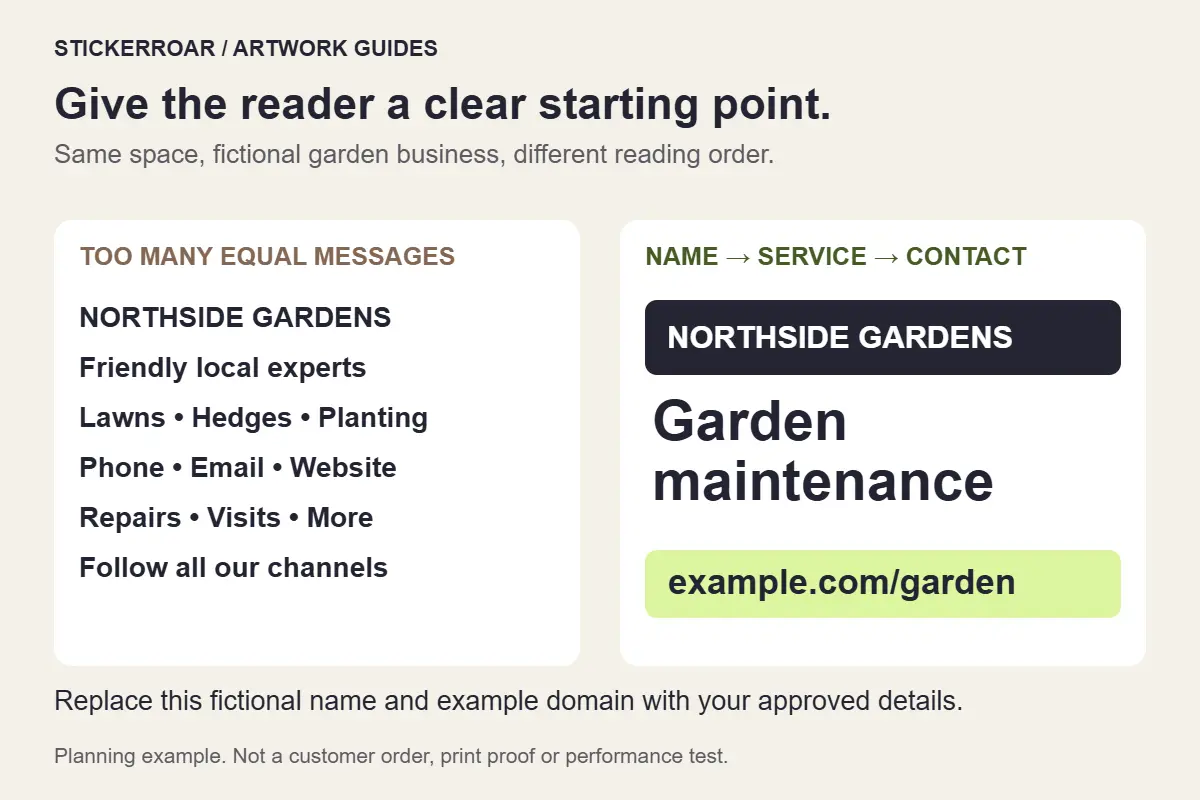
Build a business car sticker around three decisions: which name or logo the reader should notice, what service they should understand, and which contact action they should take. Prepare that complete layout before uploading the image. The StickerRoar editor previews finished artwork; it does not turn a company name into an advertisement automatically.
This guide concerns a printed sticker prepared from your design. A full vehicle wrap, separate transfer lettering or an unusually large commercial graphic may need a different production arrangement. Confirm that requirement before treating it as an ordinary small sticker order.
Give the design one clear first message
Consider a fictional business called “Northside Gardens.” A crowded first draft might give equal space to the company name, “Friendly local experts,” six services, a phone number, an email address, a website and several social handles. The reader has to work out what matters.
For a version intended to explain the service, try this reading order:
- Business identity: Northside Gardens, with its approved logo.
- Service: Garden maintenance.
- Primary next step: example.com/garden.
The domain and company name are illustrative placeholders, not a real business recommendation. Replace them with your approved details. The layout comparison above uses the same space for both versions; open the full-size comparison to inspect the hierarchy. It demonstrates an editorial choice, not a tested advertising result.
The shorter version is appropriate when those are the facts a potential customer needs first. If the business name already explains the service, another service line may be unnecessary. If calls are the preferred next step, a verified phone number can take the website's place. Choose the contact route to match the task rather than filling every available corner.
Keep the logo separate from optional wording
Start with the approved logo file and keep its original proportions. Do not stretch it to fill a long space or crop a symbol merely to make room for a slogan. If the company has a brand guide, use its spacing and color instructions as the starting point.
Try removing secondary wording before reducing the entire design. A long slogan can make the business name and contact information too small within the same outer dimensions. Prepare a second composition when a narrow placement needs a different arrangement; shrinking a wide design into a tall space rarely answers the layout problem.
For exact brand-color requirements, keep the reference with the file and use the RGB, CMYK and color-brief guide. A logo that appears correct on one screen is not a physical color approval.
Verify the destination, then test the reading order
Copy the final web address or phone number from the approved business record. Open the exact website address on a phone and confirm that it leads to the intended page. If a phone number is included, check it independently rather than assuming the number in an older flyer is current.
A QR code adds another item to the composition. Use it only when the intended interaction makes sense, and test the final printed-size design while parked. The QR artwork guide explains what to check. Do not assume a screen preview proves a small printed code will scan.
Now show a paper version to someone unfamiliar with the layout. Ask what business they see, what service it offers and how they would make contact. Their answers can reveal which line competes with the important information. This is a practical draft review, not a measured prediction of inquiries or sales.
Measure the available space with the vehicle parked
Measure usable width and height at the intended location. Include the outer sticker shape and border, and account for panel edges, handles, seams and curves. Check the actual surface instead of taking dimensions from an illustrative vehicle scene.
Print the design at the proposed dimensions with page fitting disabled and check it with a ruler. Read the smallest important line from the distance relevant to your use. There is no single sticker size that makes every logo and contact line readable on every vehicle. Use the measurement guide to compare sizes without confusing screen scale with physical dimensions.
Keep the driver's view and working vehicle components clear. Confirm the supplied material and application method for the intended location. A successful paper layout check does not test the adhesive or prove suitability for a particular window or paint finish.
Export and submit the approved composition
Keep the editable master, then export the finished design as PNG or JPEG. Open that export and check the spelling, logo proportions, contact details, background and outer edges. Use the file-format guide if the source is a vector document or another unsupported upload type.
With the layout ready, start a custom car sticker and review the dimensions, material, border and quantity. Each quantity repeats its selected design; treat another layout or contact version as a separate artwork. Submit the request without online payment, then confirm the final specification and production arrangements. Keep the approved export for future orders and replace it when the business details change.